FREE! Click here to Join FunTrivia. Thousands of games, quizzes, and lots more!
Quiz about Windows Controls

Windows Controls Trivia Quiz

WinForms Control Names

Not a programmer? No problem. These are the names of the controls in WinForms applications, the names of the classes programmers use. They're also pretty much the names non-programmers use, except there are no spaces separating multiple words. Enjoy!

A label quiz by JJHorner. Estimated time: 3 mins.
  1. Home
  2. »
  3. Quizzes
  4. »
  5. Science Trivia
  6. »
  7. Computers
  8. »
  9. Software and Programming

Author
JJHorner
Time
3 mins
Type
Label Quiz
Quiz #
420,531
Updated
Apr 18 26
# Qns
10
Difficulty
New Game
Avg Score
6 / 10
Plays
16
Last 3 plays: Kabdanis (8/10), aandp1955 (4/10), lethisen250582 (10/10).
Click on image to zoom
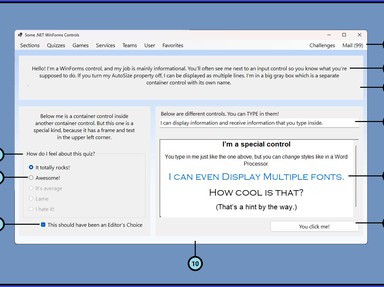
Button GroupBox Panel Form CheckBox MenuStrip RichTextBox TextBox Label RadioButton
* Drag / drop or click on the choices above to move them to the answer list.
View Image Attributions for This Quiz
1. Commands from above  
2. Friendly welcome  
3. Gray boxes  
4. Gray box with panache  
5. It's awesome!  
6. ✔ marks the spot  
7. You can type here!  
8. You can type with different fonts here!  
9. It'll click  
10. The whole enchilada!  

Most Recent Scores
Today : Kabdanis: 8/10
Today : aandp1955: 4/10
Today : lethisen250582: 10/10
Today : Guest 71: 5/10
Today : steveastrouk: 8/10
Today : Guest 77: 10/10
Today : Guest 166: 2/10
Today : bernie73: 0/10
Today : xchasbox: 2/10

Quiz Answer Key and Fun Facts
1. MenuStrip

A MenuStrip in Windows Forms is that bar at the top with File, Edit, Help... all the usual suspects. Under the hood, it's just a container for menu items, but it certainly looks good. You drag it onto a form in Microsoft Visual Studio and boom! Your app instantly looks legitimate. It doesn't actually do anything yet, of course. That part's on the coder.

A MenuStrip holds ToolStripMenuItem objects, which can hold more of themselves, like a kind of UI recursion. File can have New, Open, Exit, and then Open Recent, and then maybe a list of files if you're feeling REALLY ambitious.

Each item can fire a Click event, which is where your code finally gets a chance to justify its existence.

To create a MenuStrip with a File menu on the fly, this'll do it. Note that line comments begin with '//' and are ignored by the compiler.

// Create an instance of the class
MenuStrip mainMenu = new MenuStrip();

// Create a file menu
ToolStripMenuItem fileMenu = new ToolStripMenuItem("&File");
ToolStripMenuItem exitItem = new ToolStripMenuItem("&Exit");

// Add Items to the File menu
fileMenu.DropDownItems.Add("Say 'Hi'", null, (s, e) => MessageBox.Show("Hello, World!"));

fileMenu.DropDownItems.Add(new ToolStripSeparator());
fileMenu.DropDownItems.Add(exitItem);

// If the user selects Exit, get out of Dodge
exitItem.Click += (s, e) => Application.Exit();

// Add the file menu to the main menu
mainMenu.Items.Add(fileMenu);

// Add the main menu to the current form
this.Controls.Add(mainMenu);
this.MainMenuStrip = mainMenu;
2. Label

A WinForms Label control just sits there and shows text. No input, no excitement, just text. You drop one onto a form in Microsoft Visual Studio and it immediately starts doing its job. It's not even the kind of control most programmers take the time to give a unique name to.

It's typically just there to explain something else, like telling you what that nearby TextBox is supposed to be before you complain about your experience at Denny's in the Date field.

It also has a few tricks. You can tweak alignment, fonts, colors, all that fun stuff. Nothing wild, but enough to make your UI look like you put a little thought into it.

And then there's a slightly old-fashioned but still useful feature. The ampersand. Stick an '&' before a letter in the label's Text property, and that letter becomes a keyboard shortcut when the user presses Alt. Hit Alt plus that letter and focus jumps to the next control in the tab order.

You can add a label on the fly if you really want to, although I'm quite certain I've never done it before.

// Instantiate a new Label control
Label myLabel = new Label();

// Set our properties
myLabel.Text = "The timid runtime label is rarely spotted in the wild.";

// Set position
myLabel.Location = new Point(50, 50);

// Size to fit
myLabel.AutoSize = true;

// Gussy it up with some color and a bold style
myLabel.ForeColor = Color.DarkBlue;
myLabel.Font = new Font("Arial", 14, FontStyle.Bold);

// Add it to the form
this.Controls.Add(myLabel);
3. Panel

A Windows Forms Panel is just a box whose whole job is to hold other stuff. That's it. It's what you use when your layout is getting messy. It separates THIS part of the window from THAT part of the window. It's exciting in the same way that rectangles are exciting.

Sure, you can set the docking, dividing your screen up into different blocks, but at the end of the day, they're rectangles you put other controls in.

Since the welcomePanel is a control that contains the welcomeLabel control, we need to add the label to its list of child controls. This is done with the Panel.Controls.Add() method:

welcomePanel = new Panel();
welcomePanel.Controls.Add(welcomeLabel);

This is copied from the InitializeComponent() method that gets updated every time you add or modify a control in Visual Studio's form editor.
4. GroupBox

A GroupBox is just a Panel with panache. A little style. Yeah, it's still a rectangle you put other controls in, but it's got a pretty border... and a place to add some text. And I bet you thought rectangles were BORING.

Again since the GroupBox is a container, all its child controls are added in the InitializeComponent() method, a snippet of which appears below:

youLikeMyQuizGroupBox = new GroupBox();

youLikeMyQuizGroupBox.Controls.Add(hateRadioButton);
youLikeMyQuizGroupBox.Controls.Add(lameRadioButton);
youLikeMyQuizGroupBox.Controls.Add(averageRadioButton);
youLikeMyQuizGroupBox.Controls.Add(awesomeRadioButton);
youLikeMyQuizGroupBox.Controls.Add(itRocksRadioButton);

And if I disabled a few of those radio buttons, what of it? It's my program, my rules!
5. RadioButton

RadioButton controls are how you force the user to make a decision and actually stick to it. None of this checkbox madness where everything can be selected at once. No, no. RadioButtons travel in groups, and only one gets to be checked at any given time. I like to imagine them fighting whenever I change the selection, but my therapist says that I should probably keep that to myself.

Let's add a GroupBox to a form on the fly with two radio buttons. Again, I've never done this, but we'll figure it out together.

// Create a new GroupBox
GroupBox musicGroupBox = new GroupBox();
musicGroupBox.Text = "Turn the Music Up?";
musicGroupBox.Location = new Point(20, 20);
musicGroupBox.Size = new Size(200, 100);

// Create the "Yes" RadioButton
RadioButton yesRadioButton = new RadioButton();
yesRadioButton.Text = "Yes";
yesRadioButton.Location = new Point(20, 30);

// Set "Yes" as the default
yesRadioButton.Checked = true;

// Create the "No" RadioButton
RadioButton noRadioButton = new RadioButton();
noRadioButton.Text = "No";
noRadioButton.Location = new Point(20, 60);

// Add the radio buttons to the group box
// Since they share the same parent control, only one will be selected at a time
musicGroupBox.Controls.Add(yesRadioButton);
musicGroupBox.Controls.Add(noRadioButton);

// Add the GroupBox to the form. Voila!
this.Controls.Add(musicGroupBox);
6. CheckBox

CheckBox is the chill best friend of RadioButton. It doesn't care what the other controls are doing. You want one checked? Fine. All of them checked? Also fine. None? Sure, live your truth.

Like all controls, it can be enabled or disabled based on context by setting the Enabled property. You get the check state by either reading the Checked or CheckState property, depending on whether you're expecting nulls or not.

The CheckBox from the window above is defined below.

editorsChoiceCheckBox = new CheckBox();
7. TextBox

A WinForms TextBox is where your app finally lets the user talk back. Programmers don't like it when users talk back, but sadly, it's generally a necessary part of the job. Up until now it's been all labels and rectangles telling you things, and then this little white box shows up. It's suddenly your turn.

And no. Don't enter emojis into text boxes. It makes us cranky.

You can set the PasswordChar property to hide the text from nosy neighbors and set it to be a mini-Notepad program by changing the Multiline property to true. The MaxLength property prevents the user from getting all Tolstoy on you.

The following example is a KeyPress event-handler that ignores non-alphabetic characters typed by the user.

Note: this site does not display leading white space nor does it allow for the introduction of HTML to make this look as it would in a code editor. Examples are going to start looking ugly.

private void displayInfoTextBox_KeyPress(object sender, KeyPressEventArgs e)
{

// Check to see if the character is NOT a letter
// and NOT a control key (like backspace).
// Letters and control keys are allowed.

if (!char.IsLetter(e.KeyChar) && !char.IsControl(e.KeyChar))
{

// Setting Handled to true causes the key press to be ignored
e.Handled = true;
}
}
8. RichTextBox

This one might be new to you. It displays text encoded in Rich Text Format (RTF), which is a distant cousin of HTML. Think word processors, and you'll be on the right track. Most word processors can still save files as rich text.

It's the same idea as a TextBox control, but now it supports formatting. Fonts, colors, bold, italics. You drop it onto a form in Microsoft Visual Studio and suddenly your app can look a lot more polished... or a lot more chaotic, depending on how much freedom you give the user. I hate working with them.

I didn't implement ways to set fonts, styles, colors and all that fun stuff. I just wrote something in Microsoft Word and pasted it in before I took the screen shot. I'll work hard for you, dear quiz taker, but I'm not writing a word processor.

This is an example of how fun it is to work with a RichTextBox control:

// Clear anything in the rich text box

imSpecialRichTextBox.Text = String.Empty;

// Add a bold green Hello, World

imSpecialRichTextBox.SelectionFont = new Font(imSpecialRichTextBox.Font, FontStyle.Bold);
imSpecialRichTextBox.SelectionColor = Color.Green;
imSpecialRichTextBox.AppendText("Hello, World!" + Environment.NewLine + Environment.NewLine);

// Add some boring normal text

imSpecialRichTextBox.SelectionFont = new Font(imSpecialRichTextBox.Font, FontStyle.Regular);
imSpecialRichTextBox.SelectionColor = Color.Black;
imSpecialRichTextBox.AppendText("This is boring black text in the default font." + Environment.NewLine + Environment.NewLine);

// Okay, fine. Let's add a bulleted list in big purple letters

imSpecialRichTextBox.SelectionFont = new Font(imSpecialRichTextBox.Font.FontFamily, 14, FontStyle.Regular);
imSpecialRichTextBox.SelectionColor = Color.Purple;
imSpecialRichTextBox.SelectionBullet = true;
imSpecialRichTextBox.SelectionIndent = 10;
imSpecialRichTextBox.AppendText("I hate these" + Environment.NewLine);
imSpecialRichTextBox.SelectionFont = new Font(imSpecialRichTextBox.Font.FontFamily, 14, FontStyle.Regular);
imSpecialRichTextBox.SelectionColor = Color.Purple;
imSpecialRichTextBox.AppendText("I really hate these" + Environment.NewLine);
imSpecialRichTextBox.SelectionBullet = false;
9. Button

Hopefully, you've got this programming thing down now. Most of the controls you've heard about, I'm sure. None more so than the lowly button.

You drop one onto a form in Microsoft Visual Studio and it just sits there, quietly waiting to be clicked. Or activated with Enter if it's the form's AcceptButton as the OK button often is in message boxes.

The Click event is where the action is. Responding to the Click event is paramount if you want the button to actually DO something. Always a good thing.

There are a couple of small perks. You can assign a DialogResult so it automatically closes a form, which feels like cheating, but in a good way. You can also style it a bit, change text, maybe add an image if the deadline permits. As usual, it doesn't.

Validation of user data can happen after you tab away from a control, as you're using the control, or the easy way, after all text has been entered and the user clicks the button to save the data.

This is a simple validation routine for the window we've been working with. Again, I apologize for the lack of formatting.

private void clickyClickyButton_Click(object sender, EventArgs e)
{
// We can close the form if and only if the data is valid
if (ValidData())
{
Close();
}
}

// Return true if the data is valid.
// If the data is invalid, display an error message and return false
private bool ValidData()
{
// Holds a message for the first error encountered
string? errorMessage = null;

// The text box must contain data
if (displayInfoTextBox.Text.Trim().Length == 0)
{
errorMessage = "Please enter your information in the text box provided.";
}

// The rich text box must contain data
else if (imSpecialRichTextBox.Text.Trim().Length == 0)
{
errorMessage = "Please enter your information in the rich text box provided.";
}

// The Should Have Been an Editor's Choice checkbox must be checked.
else if (!editorsChoiceCheckBox.Checked)
{
errorMessage = "You must check the box to indicate this should have been an editor's choice. My program. My rules.";
}

// Made it this far? The data is valid. Get out of Dodge.
else
{
return true;
}

// If we're here, there's an error
MessageBox.Show(errorMessage, "You fool!", MessageBoxButtons.OK, MessageBoxIcon.Error);
return false;
}
10. Form

A Windows Forms Form is the whole shebang. Everything else you've been dragging around-those labels, rectangles, text boxes, etc.-they all live on this thing. No Form, no WinForms app. You create one in Microsoft Visual Studio and congrats, you've got a window.

It can have a title bar, borders, minimize and maximize buttons, or none of that if you're feeling minimalist at the time. Either way, it's the container that makes everything else visible and, more importantly, usable.

Since it's the container of all controls, including other containers, everything gets added to it in the same way as other containers (Controls.Add()).

This one doesn't get created automatically in the form's InitializeComponent() method. It's created in the application file which contains the Main() function in C#.

static void Main()
{
// To customize application configuration such as set high DPI settings or default font,
// see https://aka.ms/applicationconfiguration.
ApplicationConfiguration.Initialize();
Application.Run(new FunTriviaQuizForm());
}

To create a show the form manually you would do something like this:

using (var myForm = new FunTriviaQuizForm())
{
myForm.ShowDialog();
}
Source: Author JJHorner

This quiz was reviewed by FunTrivia editor WesleyCrusher before going online.
Any errors found in FunTrivia content are routinely corrected through our feedback system.
4/18/2026, Copyright 2026 FunTrivia, Inc. - Report an Error / Contact Us